Graph view
Published on August 6th, 2026Introduction
Explore → Graph draws the context graph. Where the table view lists the objects you ingested, the graph shows how they connect.
It is a quick way to check that a Relationship rule did what you meant, and to see the neighbourhood an agent walks when it calls explore_related_objects_get.
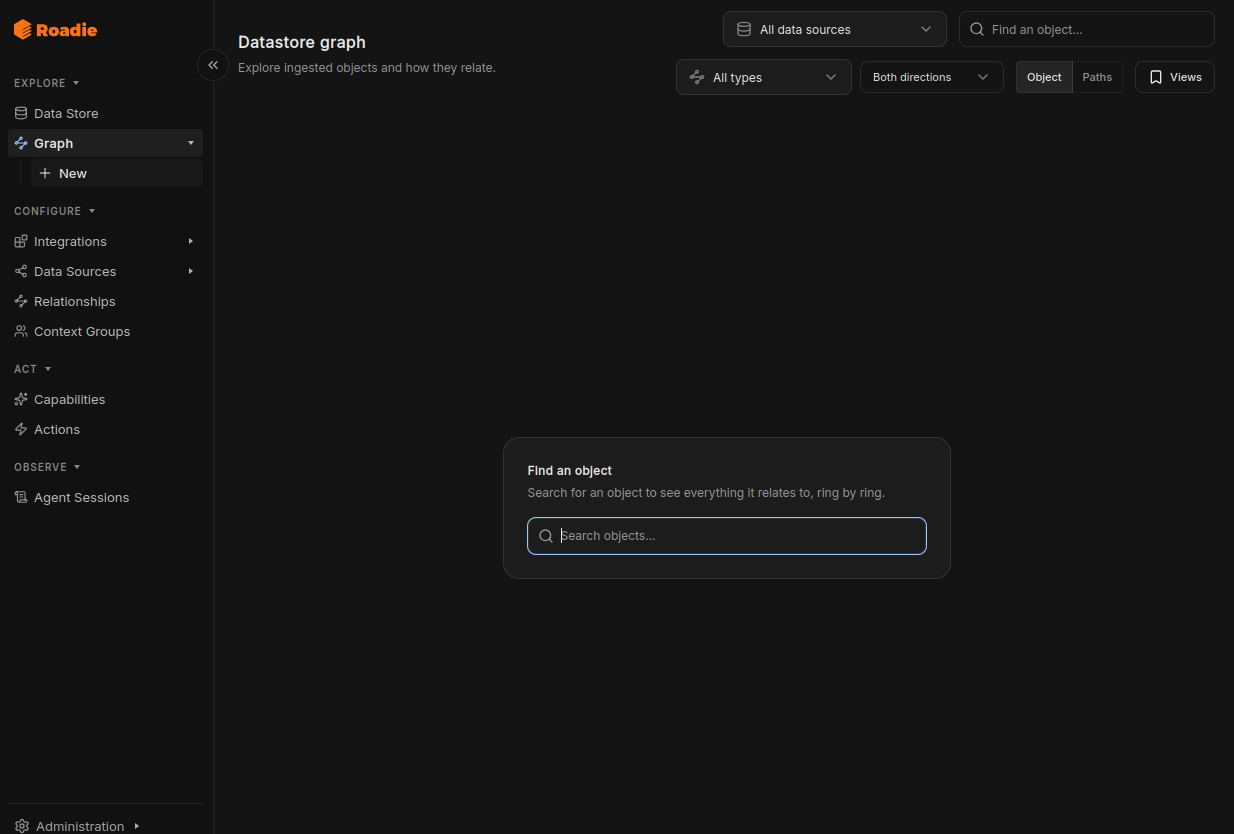
Two modes
| Mode | Shows |
|---|---|
| Object | One object's neighbourhood, ring by ring |
| Paths | Every path between two objects |
Object mode
Search for an object to make it the root, then expand outwards.
- Depth: 1, 2, or 3 rings. The default is 2.
- Traversal direction:
Both directions,Outgoing only, orIncoming only. Useful when a highly-connected node buries what you are looking for. - A single view renders up to 150 nodes. Past that, narrow the depth, the direction, or the relationship types.
Breadcrumbs track the objects you have walked through, so you can step back up the chain.
Paths mode
Pick two objects, an A and a B, and the graph draws every route between them, up to 6 hops.
Use this to check whether an alert is reachable from a given repository, and through what. If nothing renders, the two objects are not connected under the filters you have applied.
Filters
- Data sources: the same scope picker as the table view, and shared with it.
- Relationship types: restricts the edges walked to particular types. The list is populated from the types present in the selected Data Sources.
- Direction: object mode only, as above.
Clear resets the edge filters. The full graph state is held in the URL, so a view you have set up can be shared as a link.
Inspecting nodes and edges
- Click a node to open its detail drawer, the same one the table view uses. From there, the object's title takes you to its full page.
- Click an edge to see the relationship's details: its type, direction, and which rule produced it.
Saved views
The Views menu stores a graph you have set up, including its filters, its camera position, and, in object mode, which nodes you had expanded.
This is worth using for a neighbourhood you check after every ingestion run, or a path query you re-run when debugging ownership, so you do not have to rebuild the filters each time.
