Exploring the Data Store
Published on August 6th, 2026Introduction
Once a Data Source has run, everything it pulled lands in the Data Store as objects. Explore → Data Store is where you read them back.
Use it to check that an ingestion worked, to see what a record contains, or to find what an object is connected to. It shows the same objects an agent sees over the explore MCP server, so you can also use it to check what your agents will be reading.
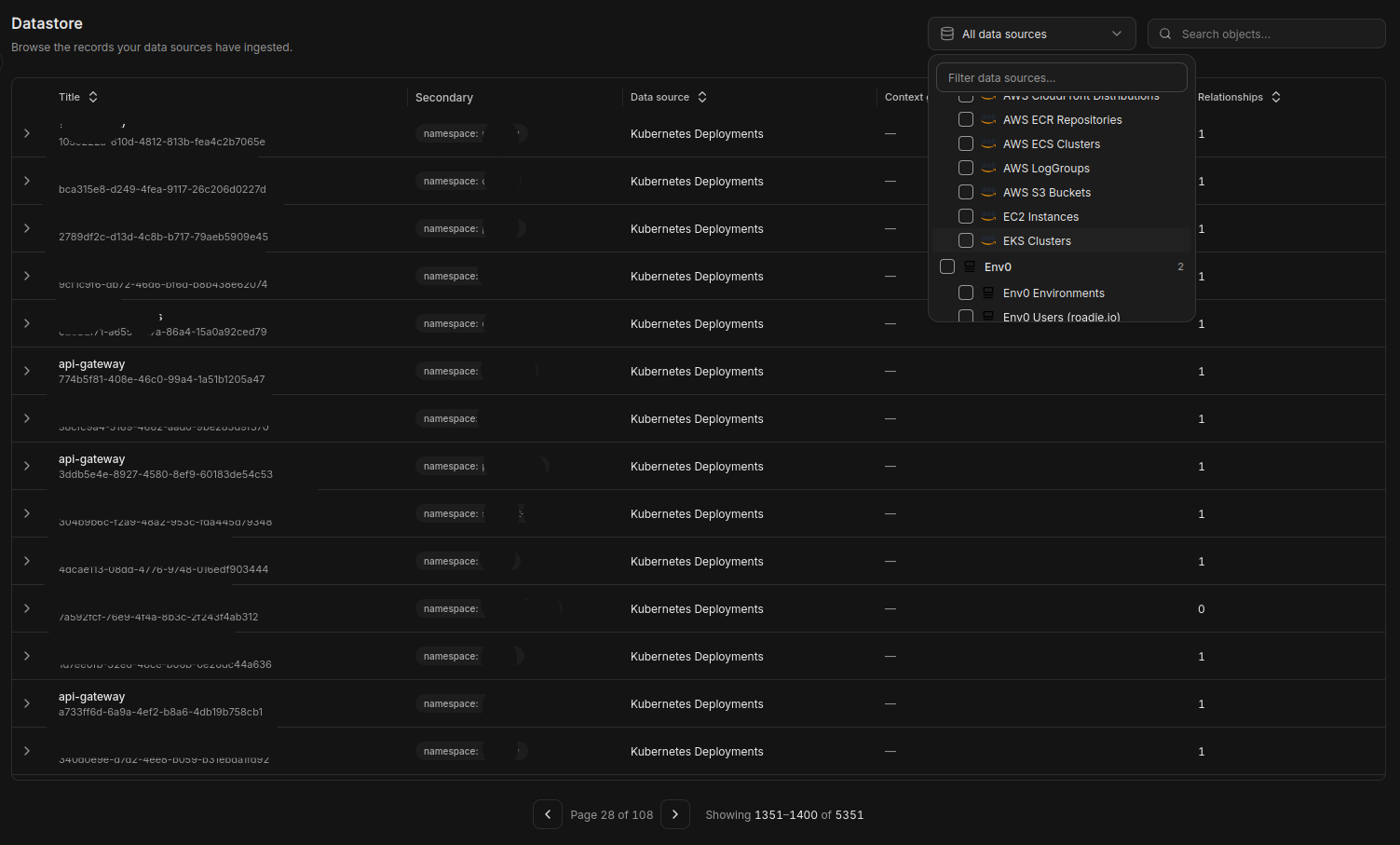
Scoping the view
The header carries a data source picker. Leave it on All data sources to search across everything, or scope to one Data Source to work within a single system's records.
The scope is shared with the Graph view, so switching between the two keeps whatever you had selected.
Searching and filtering
- Search does a free-text match across the selected Data Sources.
- Column filters narrow by an individual field. These apply when you are scoped to a single Data Source.
- Sorting is per column.
- Columns lets you hide fields you don't need. The columns available come from the fields a Data Source indexes, so a Data Source that indexes a title, a subtitle, and an image will surface those first.
Results are paginated. Filters and the chosen scope are held in the URL, so a filtered view can be shared as a link.
Opening an object
Rows have two targets, and they do different things:
| Click | Result |
|---|---|
| Anywhere on the row | Opens the detail drawer, without leaving the list |
| The object's title | Navigates to the object's own page |
The drawer is useful for scanning a list. The title is a real link, so it can be opened in a new tab.
The object page
An object's page shows:
- Identity: display name, the Data Source it came from, its entity type, and its object ID
- Context groups: the Context Groups this object is a member of
- Relationships: every edge into and out of this object, with the relationship type and the object on the other end
- Metadata: the raw record as stored
Two actions sit in the header:
- View relationship graph opens the Graph view focused on this object.
- Create direct relationship adds a one-off edge by hand, for a connection no rule produces.
Direct relationships created here are editable and deletable from the Relationships section on the same page. They sit alongside the ones produced by rules. See Relationships.
