Overview
Published on August 6th, 2026Introduction
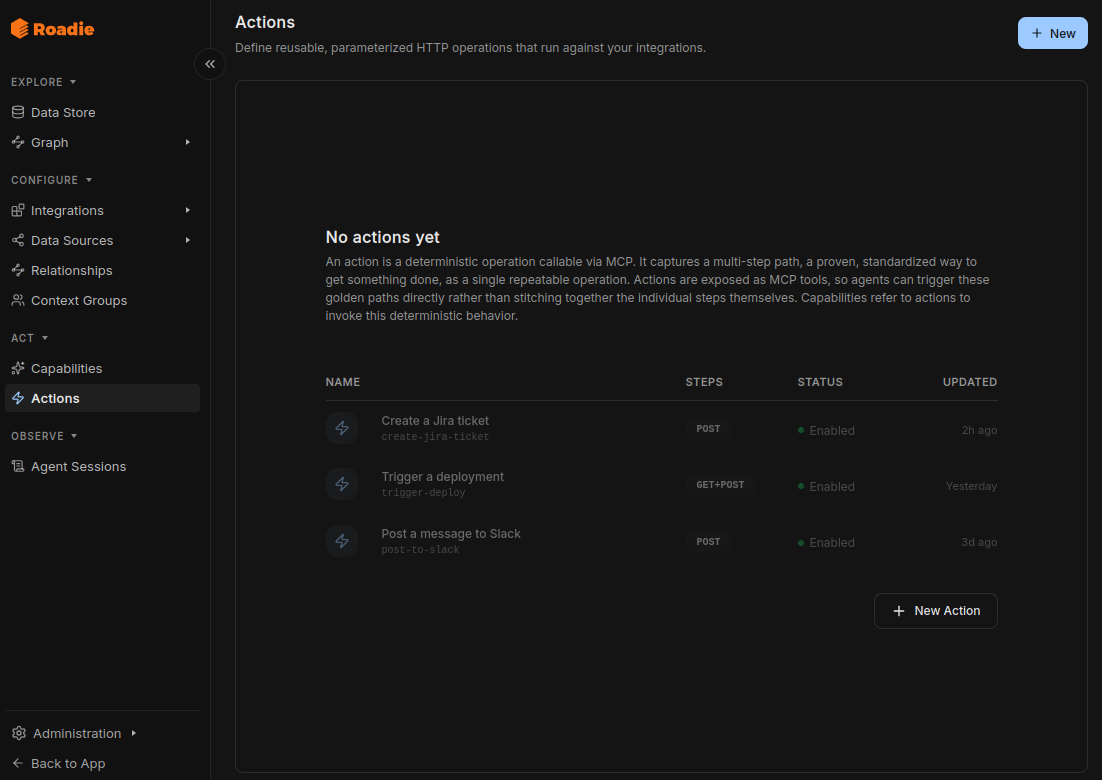
An Action is a named, parameterized sequence of HTTP requests that runs against your configured Integrations.
Rather than giving an agent raw HTTP access and relying on it to construct the right call, you define the call once, with the correct endpoint, headers, and body, and expose it under a slug. The agent then supplies only the inputs.
Actions live in the Act section of the app, alongside Capabilities.
Anatomy of an Action
Parameters
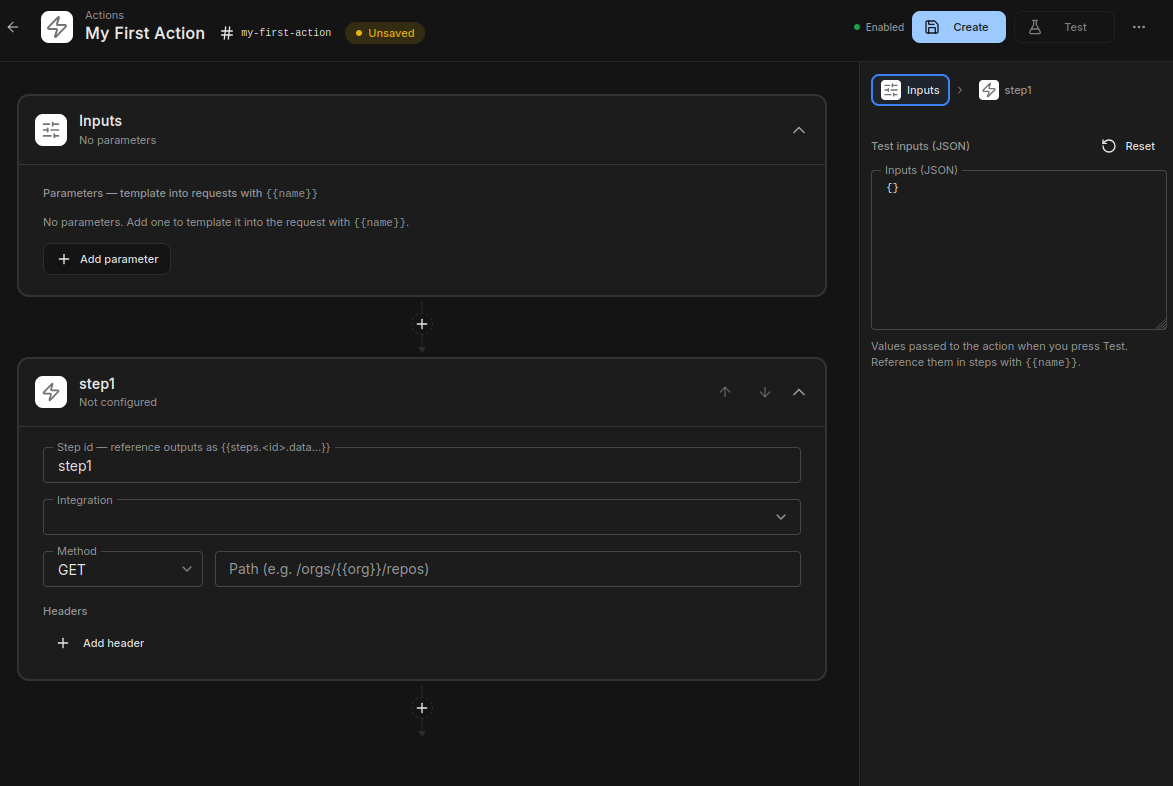
Parameters are the Action's inputs. Each has a name, a type, an optional description, and is either required or has a default. The available types are string, number, integer, boolean, and array<string>.
Parameters are flat, with no nested objects. They compile to a JSON Schema that is published to agents, so a clear description on each parameter is what stops an agent guessing at the value.
Steps
Steps are the requests, run in order. Each step has:
- An id, a plain identifier used to reference the step's output later
- An integration, which determines how the request is authenticated and where it is sent
- A request, with a method, path, headers, and body
Templating
Parameters are substituted into any part of a request with {{name}}:
GET /orgs/{{org}}/repos
Later steps can read earlier steps' output through {{steps.<id>...}}, which accepts any JSONata expression over steps:
{{steps.lookup.data.id}}
This is what a multi-step Action is for. You can look an entity up by name in step one, then act on its id in step two, without the agent handling the intermediate value.
Bodies are raw templates, so JSON needs its own quoting:
{"name":{{name}}}
Read and write mode
Every Action is classified as read or write.
The classification is derived from the steps. If every step is a GET, the Action is read. A single POST, PUT, PATCH, or DELETE makes it write. An Action with no steps defaults to write, as the safe assumption. You can override the derived value manually.
The mode is enforced at execution. The MCP tool that runs read Actions refuses write Actions, and the tool that runs write Actions refuses read ones, so an agent granted only read execution cannot be talked into a mutation.
Testing and versions
The editor can run an Action without leaving it. Supply inputs as JSON in the run panel and execute. The result shows each step's outcome in order, so a failure points at the step that caused it. Unsaved drafts can be executed too, so you do not have to persist a half-finished Action to try it.
Every save appends a version. History shows previous versions and restores any of them.
Actions can be enabled and disabled individually. A disabled Action stays defined but is not offered to agents.
Using Actions from an agent
Actions are exposed through the actions MCP server. It is not enabled by default, so turn it on under Administration → MCP Servers.
| Tool | Description |
|---|---|
actions_list | List the available Actions with their input schemas and read/write mode |
actions_execute_read | Run a read-only Action; refuses Actions classified as write |
actions_execute_write | Run a write Action; refuses Actions classified as read |
The expected sequence is actions_list first, which returns each Action's slug, input schema, and mode, then the matching execute tool.
Where a curated Action exists for a task, agents are instructed to prefer it over the raw integrations_request_* tools, which remain available as an escape hatch.
Granting access
Action scopes can be narrowed to individual Actions, so a token can be allowed to run one Action and nothing else:
| Scope | Grants |
|---|---|
action:query | List and search Actions, and read their parameters |
action:query:<slug> | The same, for one Action |
action:execute | Run any Action |
action:execute:<slug> | Run one Action |
action:get | Read a single Action |
action:create | Create or update Actions |
action:delete | Delete Actions |
Reference an Action from a Capability's instructions with @action:<slug>. The Service Token scope picker parses those references and suggests the scopes the Capability needs.
